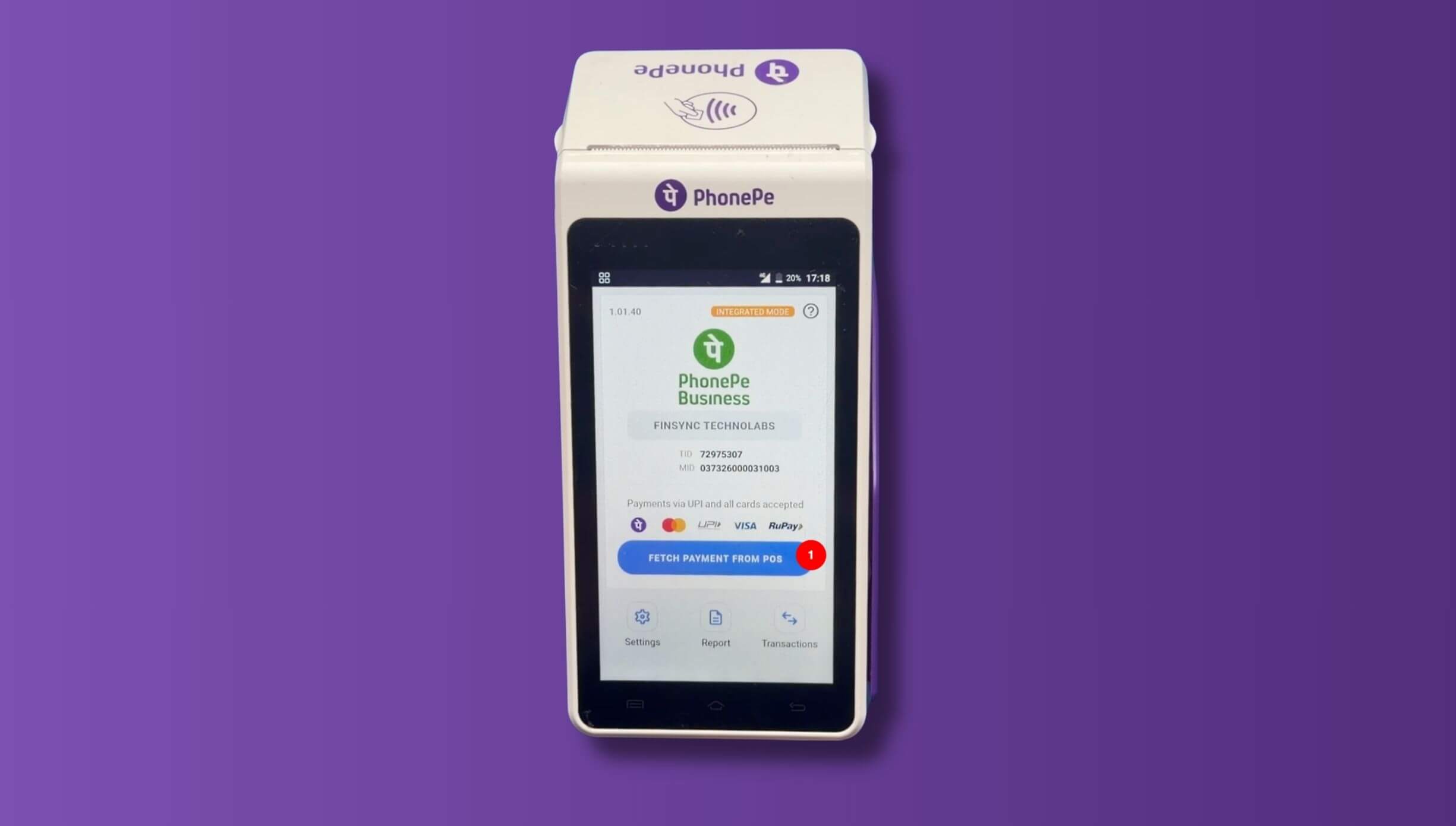
Go GST Bill allows you to integrate PhonePe EDC Machine to collect payments through Dynamic QR Code (UPI), Debit Cards or Credit Cards.
Step 1: Enable PhonePe EDC Integration
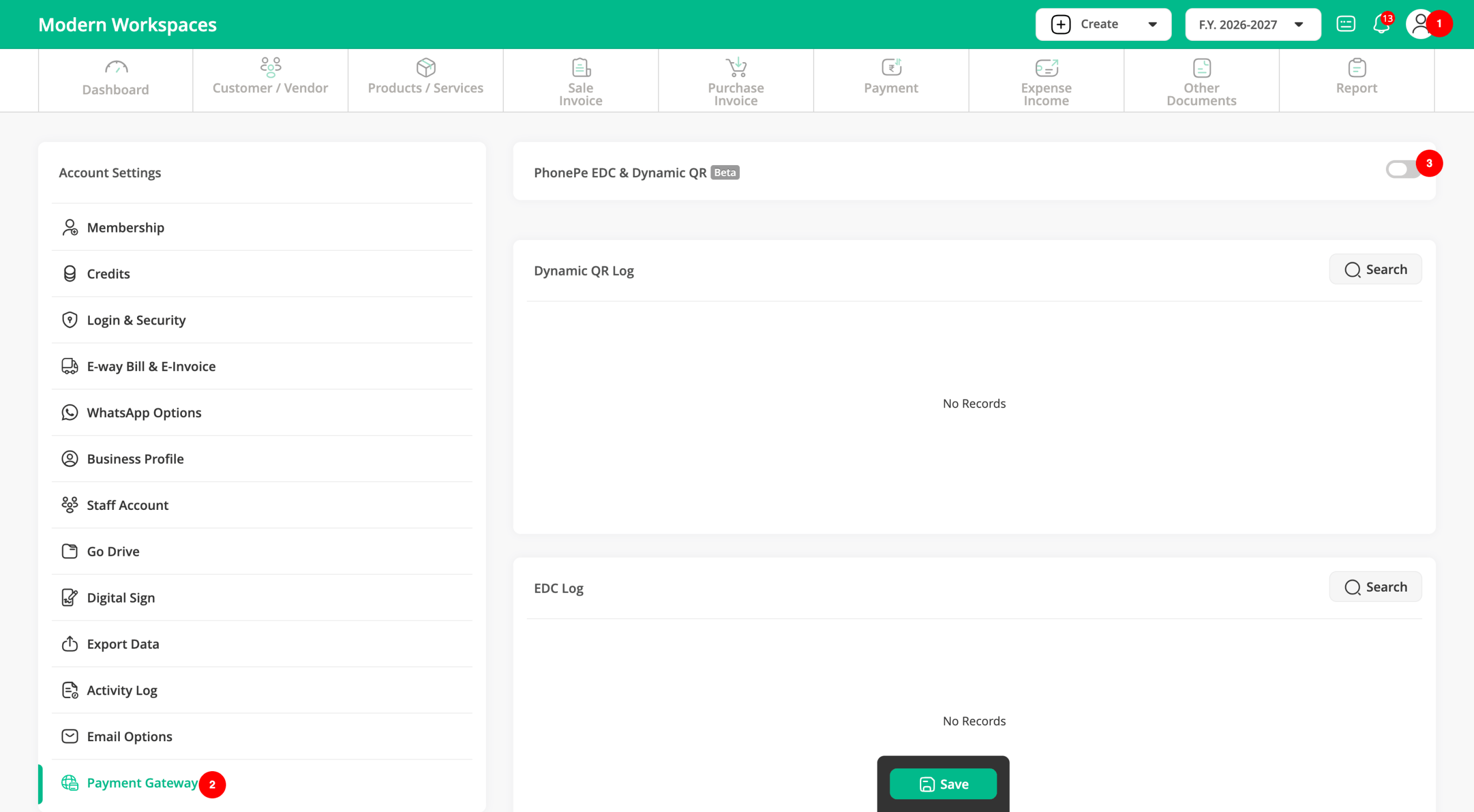
To enable the PhonePe EDC integration, log in to your Go GST Bill account and click on your Profile. Navigate to Settings and open the Payment Gateway section. Locate the PhonePe EDC & Dynamic QR option and enable it.
Step 2: Register & Configure PhonePe Machine
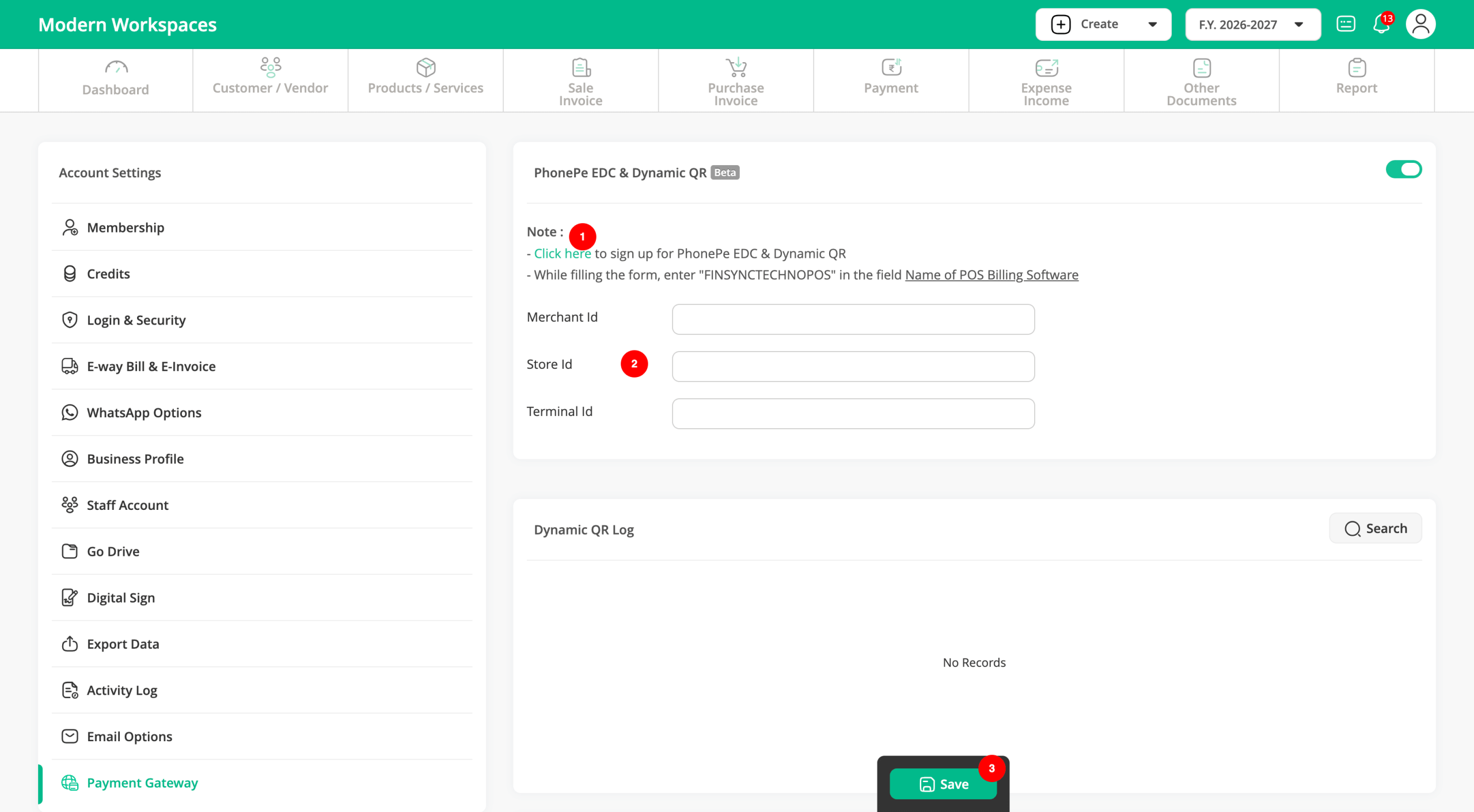
After enabling the integration, click on the PhonePe registration form link. Fill in your business details carefully. When asked for the Name of POS Billing Software, enter FINSYNCTECHNOPOS.
Once you submit the form, the PhonePe team will contact you to verify your details, complete the registration, explain the machine charges, and arrange the installation of your PhonePe machine.
Once your registration is approved, PhonePe will provide you with a Merchant ID, Store ID, and Terminal ID enter these details in the respective fields and click Save button. Your PhonePe EDC machine is now ready to accept payments through Go GST Bill.
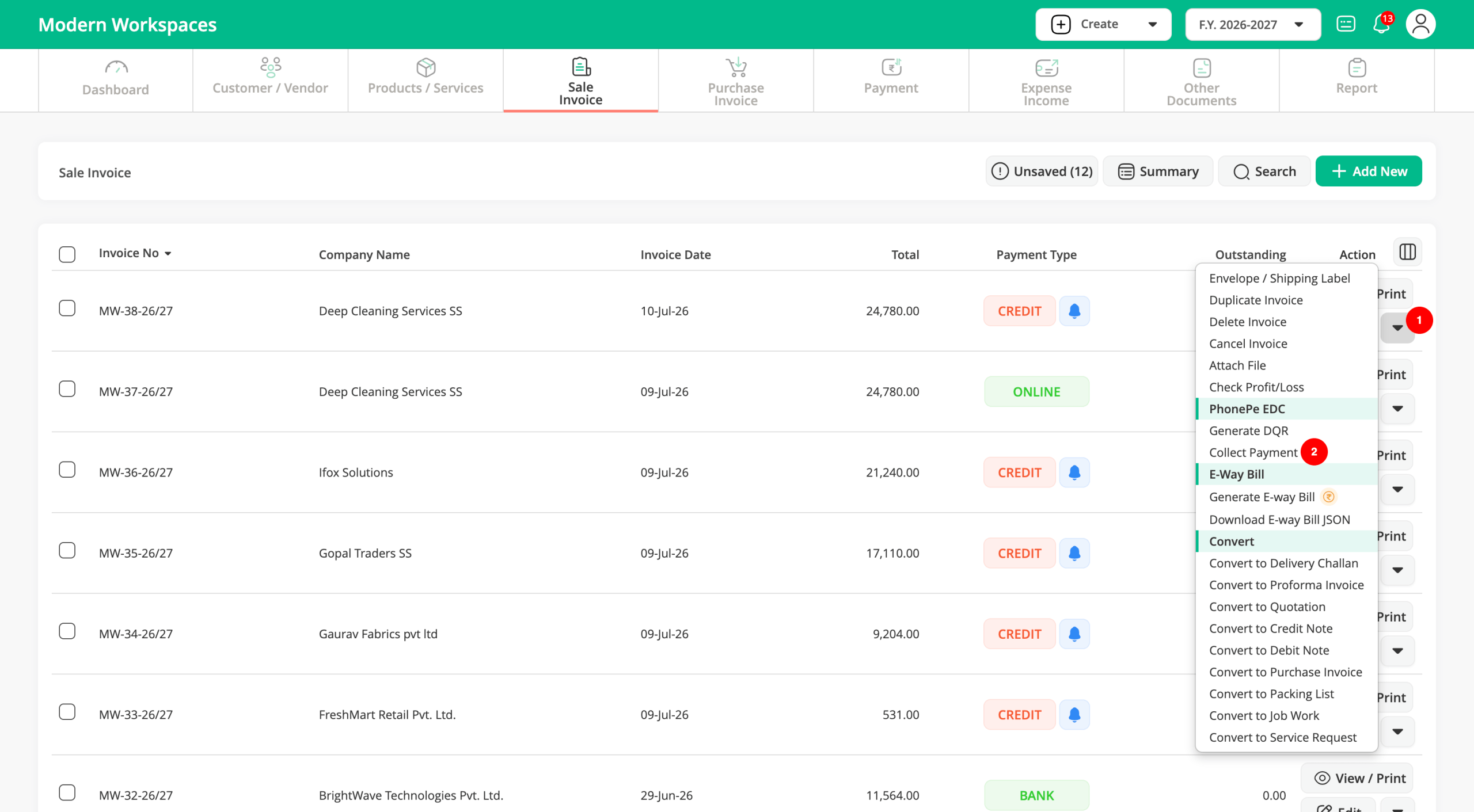
Step 3: Now You Can Collecting Payment Using Card or Dynamic QR
Select the Credit Invoice for which you want to receive payment, click the Dropdown menu, and select Collect Payment. A payment request will be sent automatically to your PhonePe machine.
Step 4: Complete Payment Process On PhonePe Device
On the PhonePe machine, navigate to Payments and select “Fetch Payment From POS”. You will see two payment options: QR Code and Card Payment.
If your customer prefers to pay by debit or credit card, Ask the customer to tap, insert, or swipe their card and complete the payment process. After the transaction is successful, refresh the invoice in Go GST Bill, and the payment status will be updated automatically.
If your customer wants to pay using UPI, select QR Code. A dynamic QR code will be displayed on the PhonePe machine. Ask the customer to scan the QR code using any UPI app and complete the payment. Once the payment is successful, refresh the invoice in Go GST Bill, and the payment status will be updated automatically.