When you receive payment from your customer you have to create an inward payment entry.
There are 2 ways to record inward payments.
Method 1: From “Payment” menu
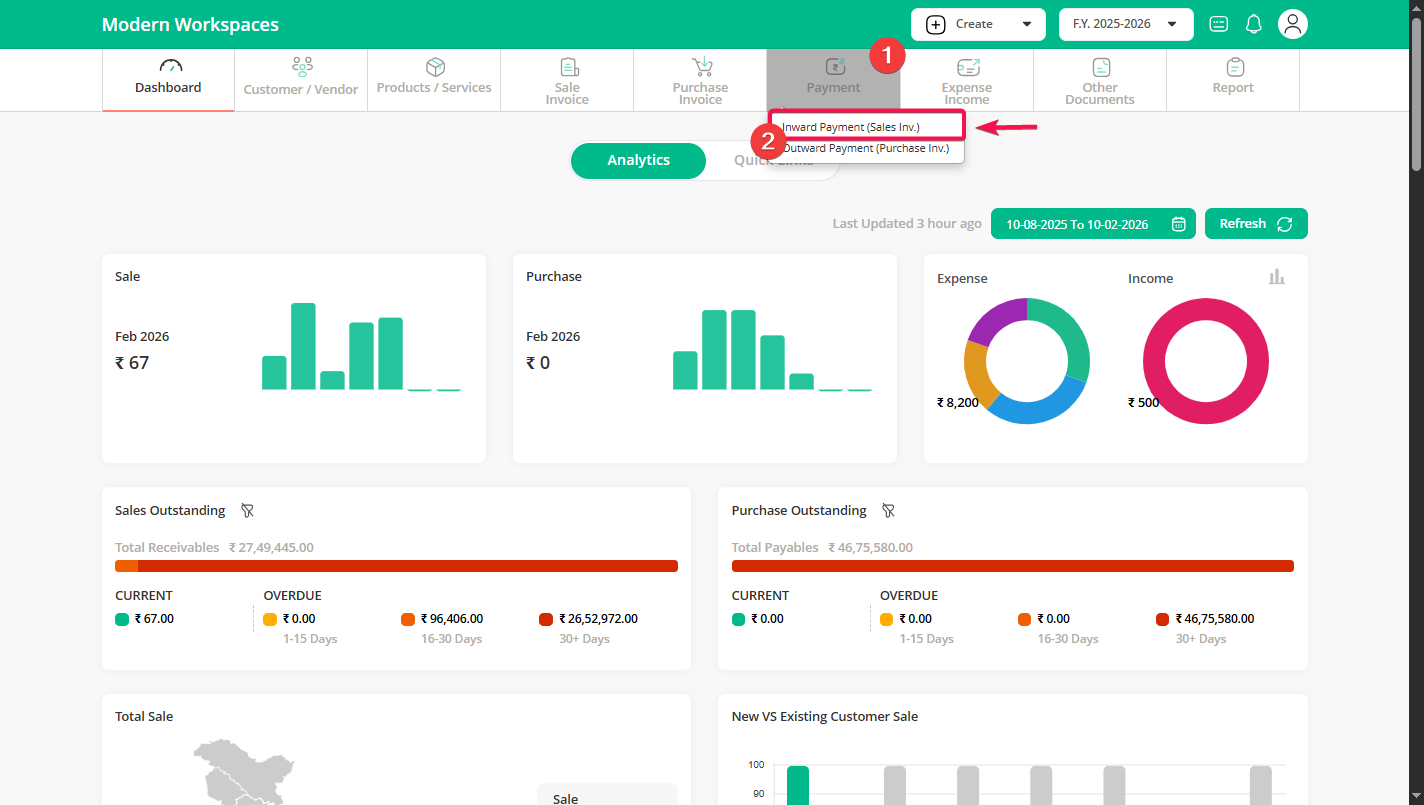
Step 1 : Go to Payment Menu & select Inward Payment from Sub Menu.
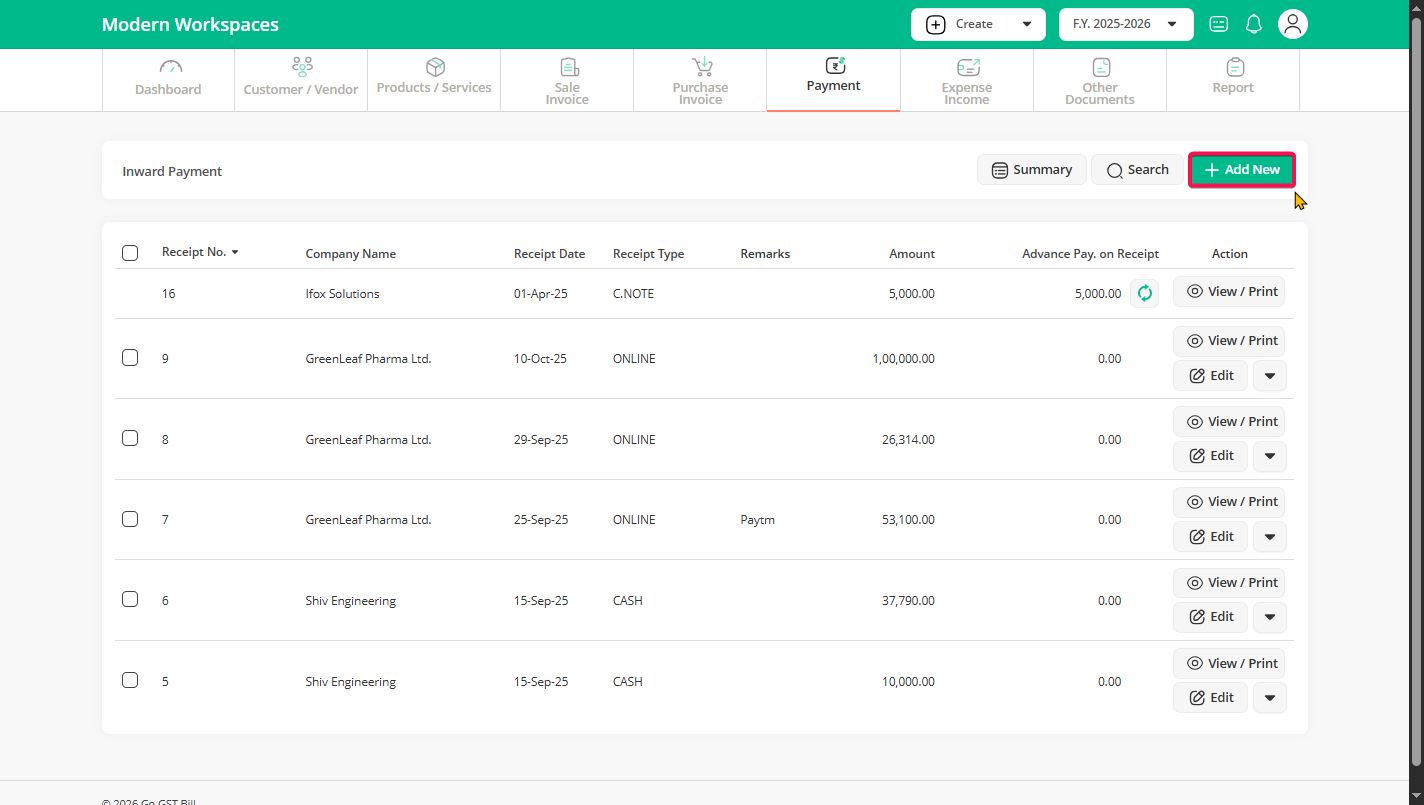
Step 2 : Click on “Add New” Button to add new payment
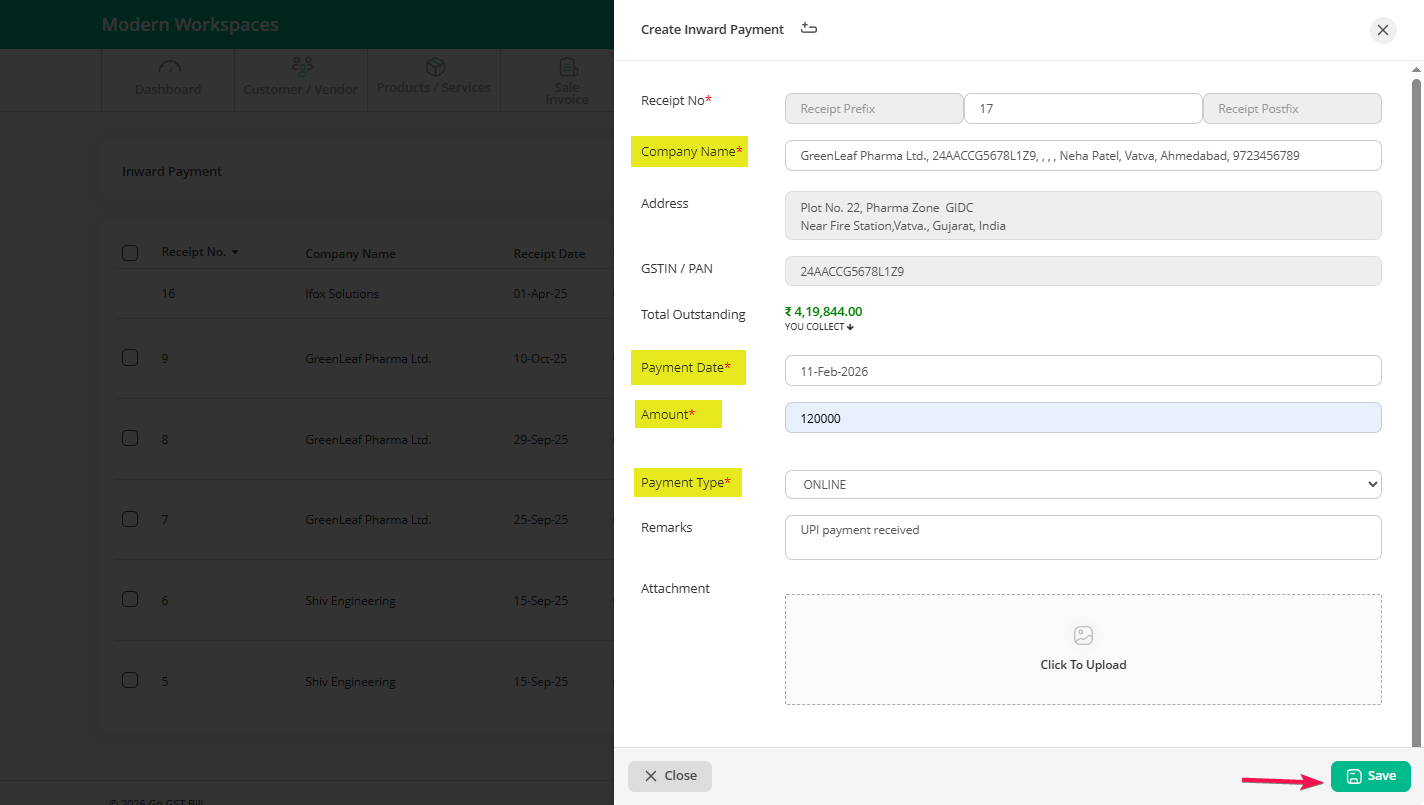
Step 3 : You will see a page to Add Payment Receipt
– It will auto create Payment Receipt No (Last payment receipt no + 1)
Step 3.1: Select a customer from the list (it will show the outstanding amount and detail of customer that customer, it’s useful when you have multiple customers with the same name)
Step 3.2: Select Payment Date on which you have received payment (you can select past dates)
Step 3.3: Enter Amount you have received, and it will auto adjust that amount with unpaid invoice or you can also select invoice and it will auto update Amount
Step 3.4: Select Payment Type and and add Remarks.
You can mention details like Payment via UPI, Payment successful, or any other notes for your reference.
Step 3.5: Add an Attachment (optional).
You can upload a screenshot or any payment proof for record-keeping.
Step 3.6: Click on the “Save” button to complete the payment receipt entry.
Method 2: From “Sale Invoice” or “Purchase Invoice” page
Note: Using this method you can add payment to selected invoice only
If you have unpaid invoice you will see red or orange color button under Payment Type column
Red color means : Invoice is fully unpaid
Orange color means: Invoice is partially paid
Green color means: Invoice is fully paid
Step 1: Find the unpaid invoice and click on red or orange button
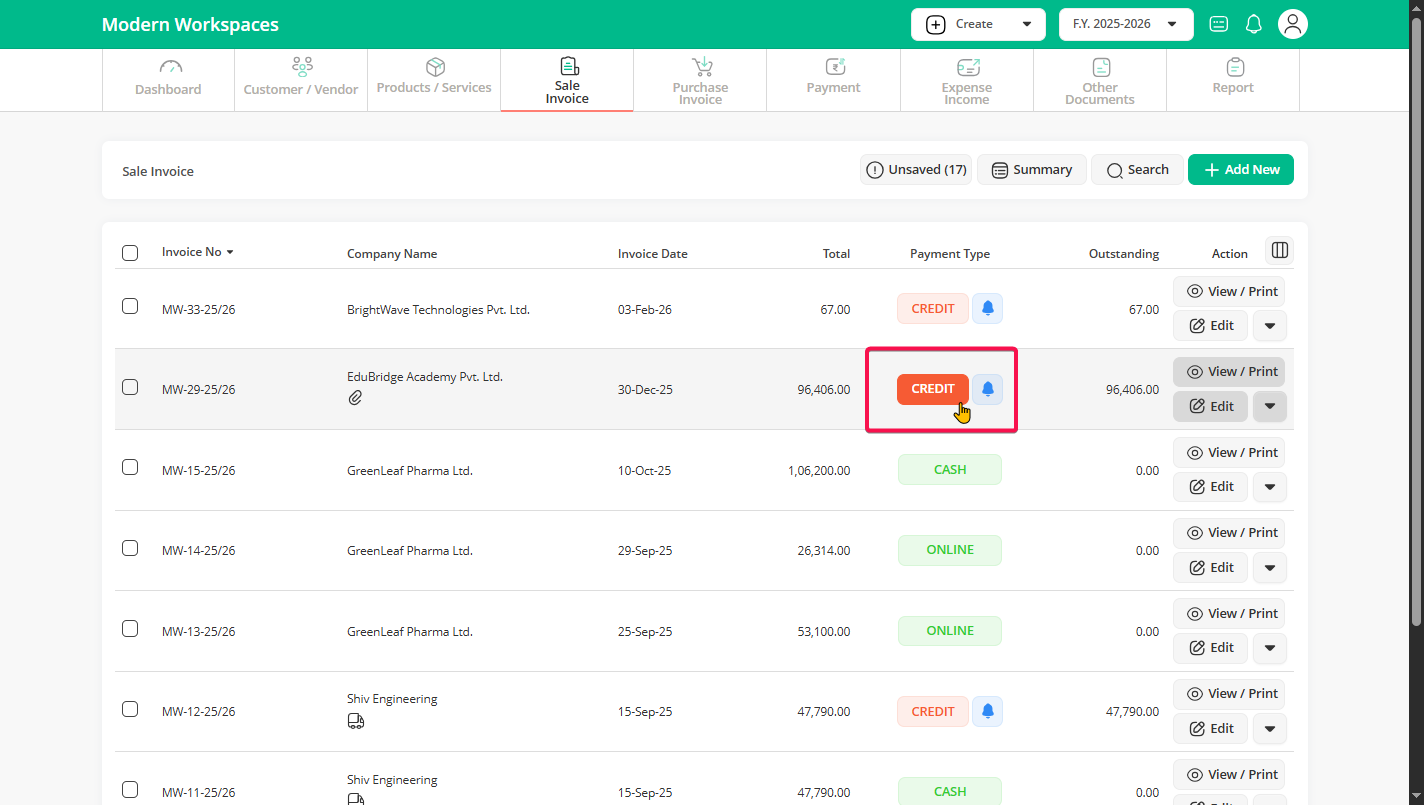
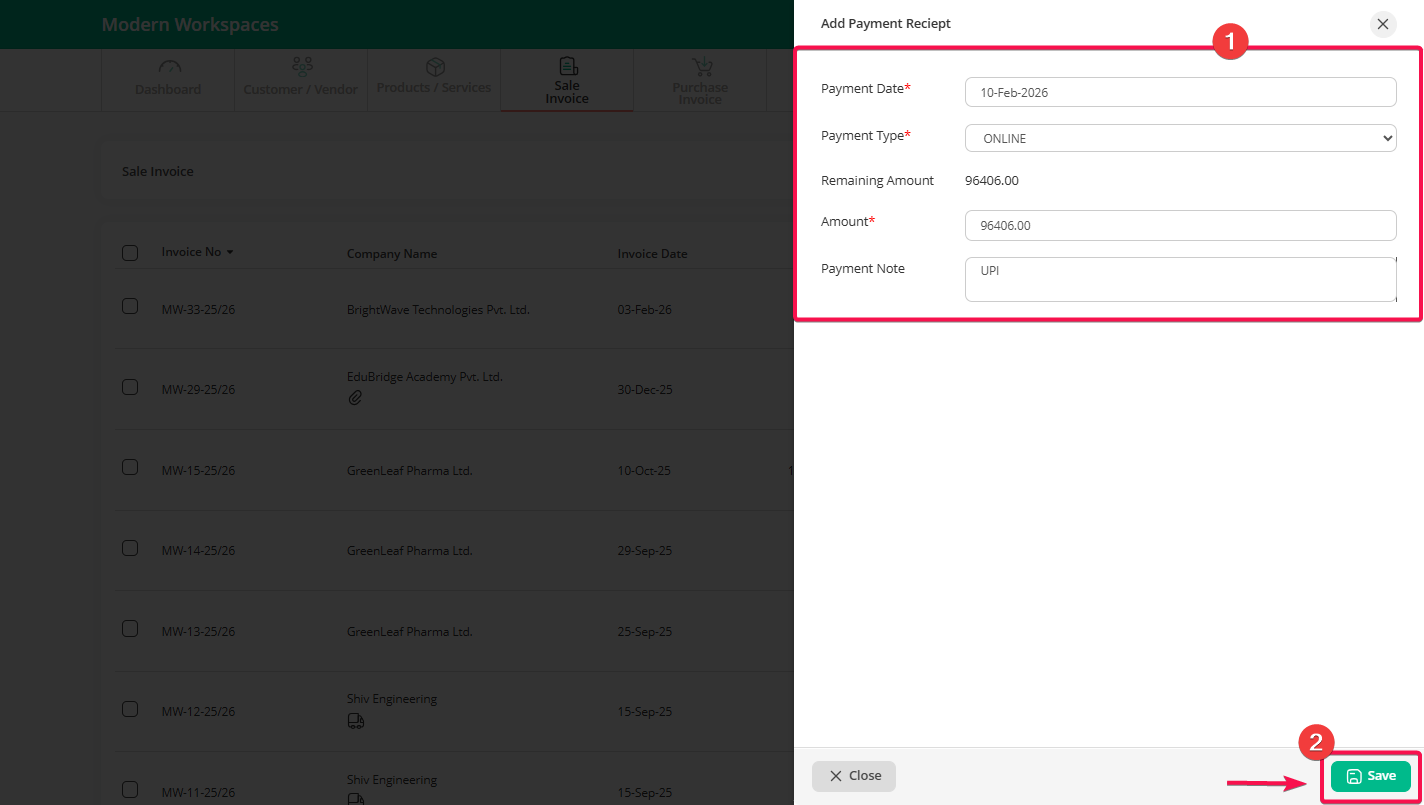
Step 2: You will see a page to Add Payment Receipt
Payment Date will be today’s date but you can change it if needed.
Step 2.1: Select the Payment Type.
Step 2.2: Enter the Amount Received.
You can also add a Payment Note for internal reference. This note will not be visible on the printed receipt.
Step 2.3: Click on the “Save” button to record the payment.