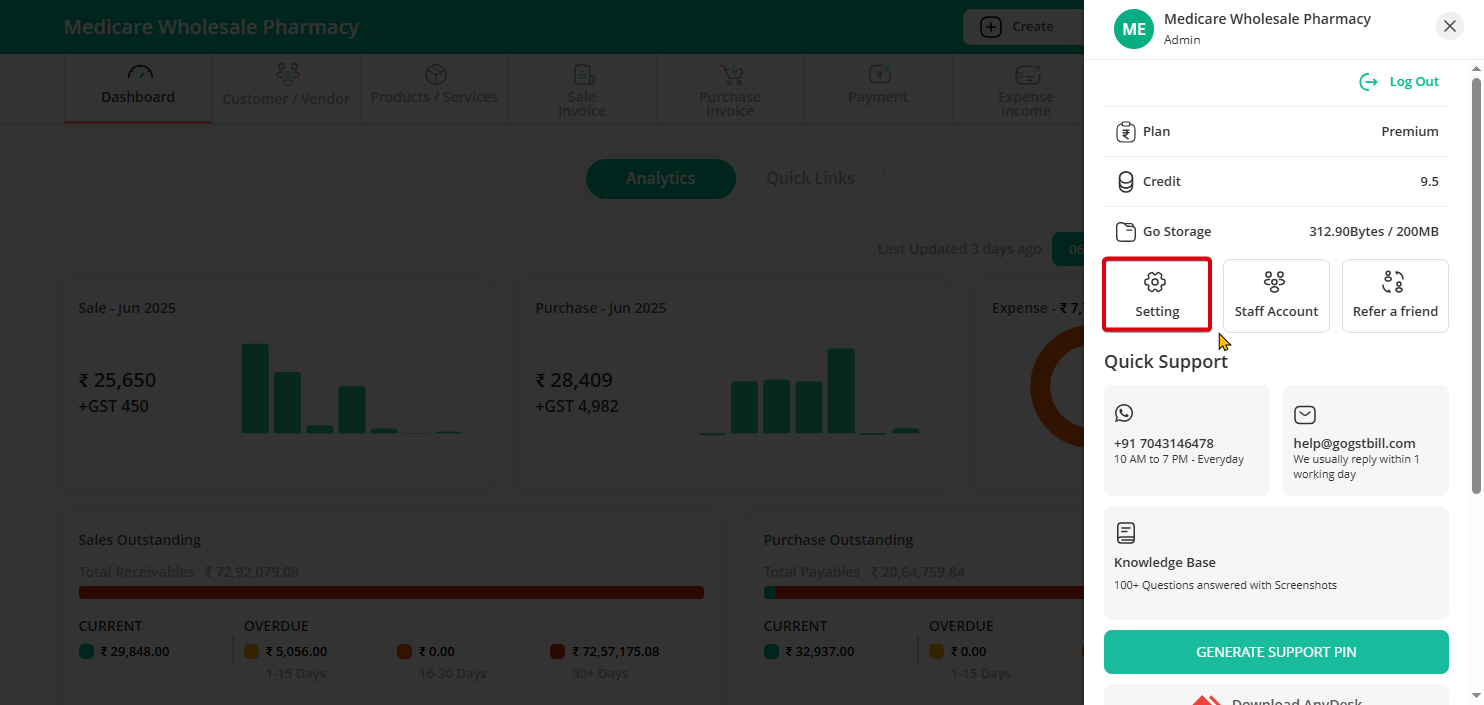
Step 1: Click on the Profile on the top right bar then click on settings option.
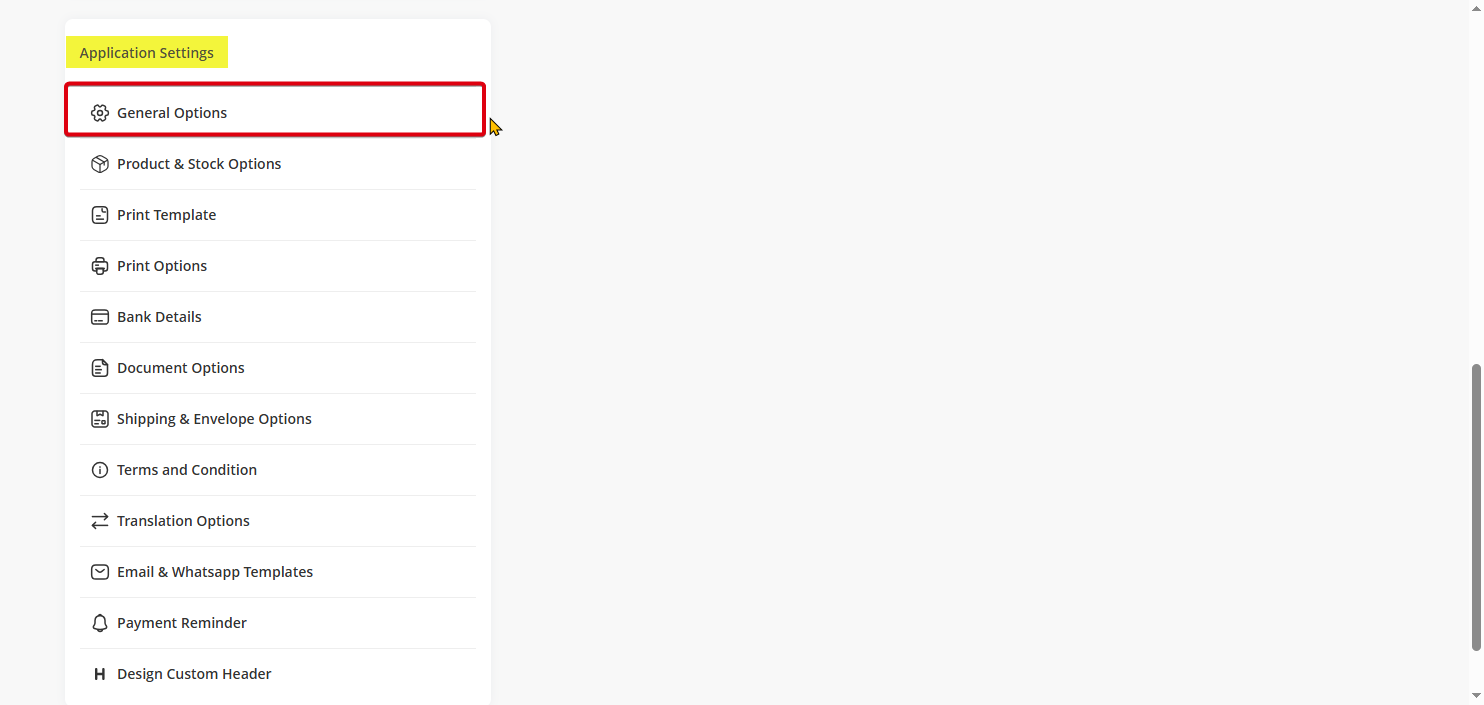
Step 2: Click on the “General” options.
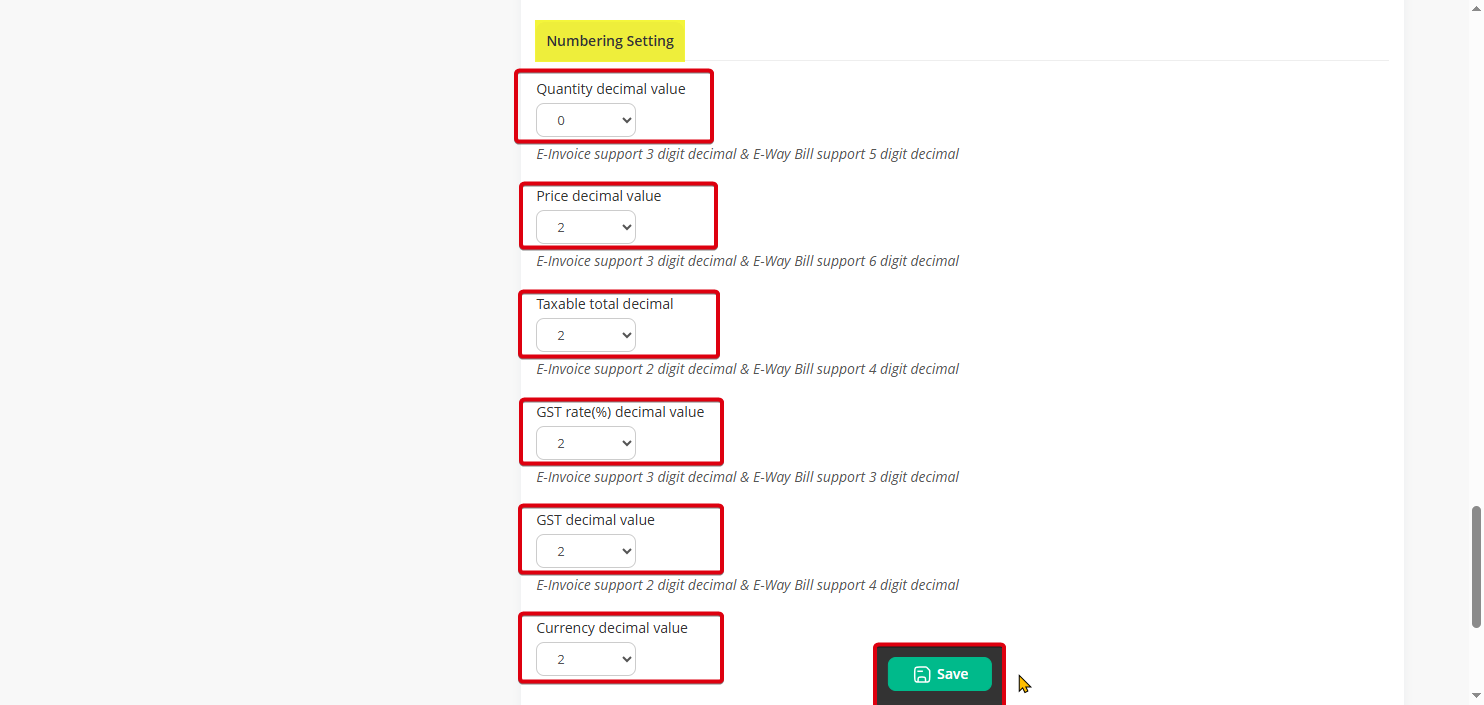
Step 3: Scroll down to the Numbering Settings section.
From here, you can set decimal places as per your requirement — Quantity up to 5 decimal places, Price up to 6 decimal places, and also adjust decimal settings for Taxable Total, GST, and Multi-Currency values. Once done, click on Save.
Important Notes for E-Invoice & E-Way Bill Users
If you generate E-Invoice or E-Way Bill, keep these limits in mind:
E-Invoice Portal
Quantity: supports up to 3 decimal places
Price: supports up to 3 decimal places
E-Way Bill Portal
Quantity: supports up to 2 decimal places
Price: supports up to 2 decimal places
⚠️ If you set higher decimal places in Go GST Bill, the system may auto-round values while generating E-Invoice or E-Way Bill to match portal rules.